
PlaneAncor
PlaneAncoriOS

PlaneAncorVision


PlaneAncor helps engineering, design, field, and education teams create a shared physical coordinate reference from a real floor and walls, then place 3D assets into that reference for review.
Start by selecting the floor, Wall 1, and Wall
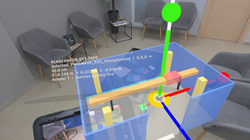
2. PlaneAncor creates a Matching Coordinate System with a visible black 0,0,0 origin and RGB XYZ axes. Load USDZ, USD, USDC, OBJ, STL, or FBX files at their authored physical scale, then adjust position, yaw, pitch, rotation, and scale with gestures, sliders, nudge controls, and transform tools.
When nearby devices connect, PlaneAncor can exchange the accepted origin, asset state, transform edits, measurements, delete events, and export/share state. This allows collaborators on iPhone, iPad, and Apple Vision Pro to discuss the same placement relative to the same physical datum.
PlaneAncor is useful for equipment layout, room-corner alignment, fixture planning, prototype review, clearance discussion, installation preparation, and spatial education. It is an AR and spatial computing visualization tool, not a calibrated surveying, metrology, structural-certification, medical, safety, or legal measurement instrument. Verify final dimensions and installations with approved professional tools.
-
Create a Matching Coordinate System from a physical floor and walls.
-
Use a visible black origin and RGB XYZ axes for repeatable 0,0,0 reference.
-
Load USDZ, USD, USDC, OBJ, STL, and FBX files for real-scale review.
-
Keep imported assets at authored physical scale unless the user explicitly scales them.
-
Move, rotate, yaw, pitch, nudge, reset, delete, export, and share selected assets.
-
Review distance from 0,0,0 as a live placement aid.
-
Connect trusted nearby devices to share origin, assets, transforms, measurements, and edits.
-
Use iPhone, iPad, and Apple Vision Pro participants in the same shared-origin workflow.
visionOS-specific
The visionOS experience brings PlaneAncor into spatial computing. In immersive space, users can review the accepted Matching Coordinate System, imported 3D assets, origin distance, and transform changes while collaborating with iPhone, iPad, or other Apple Vision Pro participants. The product page may use Apple Vision Pro in the description, but not in the app name. Use the term spatial computing for the visionOS experience.
 |  |  |  |
|---|

for iOS
for Vision OS
PlaneAncor is based on the idea that engineering placement is usually relative to a datum. A physical room corner, floor level, wall face, machine edge, or fixture line is more meaningful than an arbitrary initial camera pose. PlaneAncor turns that datum into an explicit coordinate system so everyone can discuss the same x, y, z offsets and transformations.
Why the concept is useful
Equipment layout: preview machines, cabinets, panels, and service envelopes before installation.
Clearance checks: discuss access zones, wall/door conflicts, maintenance spacing, pipe or duct interference, and safe approach paths.
Prototype review: place a design-intent model at real scale in a physical space for stakeholder discussion.
Construction and MEP coordination: compare model geometry with real site conditions before final measured installation.
Education: demonstrate coordinate systems, axes, transforms, and scale using real surroundings.
Cross-device review: one participant can use iPhone/iPad while another uses Apple Vision Pro and both discuss the same shared origin.

Figure 1. Matching Coordinate System from Floor + Wall 1 + Wall 2. The physical corner becomes 0,0,0 and the RGB axes define the review frame.

Figure 2. Cross-device visibility. Devices remain independent but render shared assets from the accepted Matching
Connectivity, Cross Visibility, and Same-Origin Sharing
PlaneAncor collaboration is built around explicit trust. Devices do not silently take over each other. Each device tracks its own world independently, but the app maps the accepted Matching CS origin into each device world. After a group origin is accepted, assets are stored and exchanged in Matching-CS coordinates. This is the reason cross visibility can work without forcing every device to share the same raw ARKit or visionOS world coordinate system.
How same-origin cross visibility is achieved
1. Each device builds or receives a local mapping between its own AR/world tracking coordinate system and the PlaneAncor Matching Coordinate System.
2. One trusted device proposes its current Matching CS 0,0,0 as the group origin.
3. Other devices accept only when the user confirms that the proposed origin represents the same physical corner/datum.
4. All loaded assets are represented as transforms relative to the Matching CS, not as raw camera-world coordinates.
5. When an asset is moved, rotated, scaled, reset, deleted, exported, or shared, the edit is sent as Matching-CS state and an edit event.
6. Each receiving device converts that shared Matching-CS asset transform into its own local world for rendering.
7. Measurements are computed relative to the same accepted origin, so the team discusses the same intended placement even though each device maintains independent tracking.
Target users
PlaneAncor is intended for engineering, design, field, education, construction coordination, industrial layout, prototype review, and spatial-planning users who need to place a 3D asset relative to a real physical origin.
Benefits
- Creates a Matching Coordinate System from a real floor and two walls.
- Shows the 0,0,0 origin and RGB XYZ axes as a shared spatial reference.
- Loads USDZ, USD, USDC, OBJ, STL, and FBX assets at authored physical scale.
- Lets a user move, rotate, scale, nudge, place in front, reset, export, and share transforms.
- Connected iPhone, iPad, and Apple Vision Pro devices exchange Matching CS pose, loaded-asset state, transform edits, measurements, delete events, and state snapshots so AR and immersive views stay synchronized.


Why devices are independent and still see the same placement
Each device has a private local world coordinate system created by ARKit, RealityKit, or visionOS spatial tracking. PlaneAncor does not require those local worlds to be numerically identical. Instead, the shared content is stored relative to the accepted Matching CS. A device renders an asset by applying its own local transform from Matching CS to device world, then applying the shared asset transform.
Conceptual render equation:
DeviceWorldAssetPose = DeviceWorldFromMatchingCS x AssetPoseInMatchingCS
Conceptual distance equation:
DistanceFromOrigin = sqrt(x*x + y*y + z*z), where x/y/z are Matching-CS coordinates.
This makes the app robust for iPhone, iPad, and Apple Vision Pro collaboration because the communication payload can remain compact: origin state, asset state, transforms, measurements, and user-approved acceptances. Raw camera imagery does not need to be streamed to the developer or to peers for the default workflow.
3D Assets, Physical Scale, Transform Controls, Export, and Share
PlaneAncor supports user-selected 3D files for review. The primary supported workflow is to preserve the authored physical scale of the imported asset and store the user transform separately. The app should avoid silent fit-to-box normalization because engineering review depends on scale and offsets.
If the OS cannot expose a usable material tree or a file loads with only a pivot, the app can display a conservative fallback body only to preserve visibility and selection. Public copy should avoid claiming calibrated geometry beyond what the imported asset and tracking environment support.

PLANEANCOR QUICK WORKFLOW
1. PREPARE THE SPACE Use a well-lit room with a visible floor and walls. Move slowly until tracking is stable.
2. OPEN SESSION COORDINATES On visionOS, open the immersive space before selecting planes. On iPhone/iPad, point the camera at the real floor and walls.
3. SELECT FLOOR Press the Floor button, then tap the real floor. Increase sensitivity if needed.
4. SELECT WALL 1 Press Wall 1 and tap the first wall.
5. SELECT WALL 2 Press Wall 2 and tap a second wall that is not parallel to Wall
1. If the second wall cannot be captured, use the explicit unlock/fallback workflow only after confirming the intended reference.
6. CREATE MATCHING CS Press Create Matching CS. The black 0,0,0 origin and RGB XYZ axes must appear before production placement.
7. CONNECT DEVICES OPTIONAL Connect trusted nearby iPhone, iPad, or Apple Vision Pro devices. One device proposes the group origin; other devices accept only when everyone agrees.
8. LOAD 3D ASSETS Load USDZ, USD, USDC, OBJ, STL, or FBX. PlaneAncor preserves authored physical scale unless you explicitly scale the object.
9. TRANSFORM AND VERIFY Select an asset. Use gestures, sliders, nudge arrows, yaw, pitch, reset, delete, export, share, and distance from 0,0,0.
10. EXPORT OR SHARE Export the original asset or a transform manifest for documentation. Connected peers receive accepted-origin transforms and edits.

Target users and benefits
Engineering and design teams: review equipment layout, prototype placement, and clearance envelopes before final measured installation.
Field and construction coordination teams: compare a design-intent 3D asset with a real room corner, wall, floor, fixture line, or installation reference.
Industrial and facilities teams: discuss machinery, panels, cabinets, ducts, brackets, and service zones relative to a physical origin.
Education and training users: teach coordinate systems, real-scale placement, and spatial alignment through AR and immersive visualization.
Collaborative reviewers: use iPhone, iPad, and Apple Vision Pro together so multiple participants see the same asset placement relative to the same origin.

sharing usdz betwenn apple vision and ipad

for iOS