
Simple DICOM Viewer
3D DICOM Volume Viewer
Immersive CT & MRI Viewer
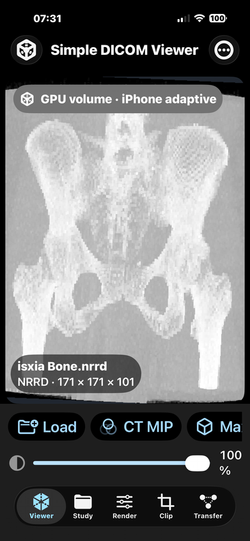
Import DICOM, NRRD, NIfTI, VTK, image stacks, STL, glTF, and USD assets for GPU 3D volume rendering on iPhone, iPad, and Apple Vision Pro.


Visualize compatible CT and MR DICOM series as interactive three-dimensional volumes on iPad and Apple Vision Pro
Explore CT and MR studies in interactive 3D with GPU volume rendering, presets, transfer functions, clipping planes, and immersive Apple Vision Pro viewing.
Study CT and MR anatomy in interactive 3D using GPU rendering, customizable transfer functions, clipping tools, and spatial visualization on Apple Vision Pro.
Visualize DICOM volumes with integer-voxel GPU rendering, adaptive quality, MIP, isosurfaces, crop tools, and immersive spatial controls.
Simple DICOM Viewer Build 4 can import medical-image volumes, scientific volumes, ordinary image stacks, polygon meshes, and supported scene files. A user can select one file, several related files, or an entire containing folder.
All successfully imported content is converted into the app’s shared, memory-protected Int16 volume representation. It can then use the same GPU rendering controls, including direct volume rendering, maximum intensity projection, isosurface rendering, presets, window and level, opacity, transfer functions, clipping planes, crop controls, and Apple Vision Pro immersive presentation.
Import compatibility depends on the exact file structure, scalar type, compression method, companion files, available memory, operating-system support, and the limits documented below.
QUICK LIST OF ACCEPTED INPUTS
Medical and scientific volumes:
• DICOM: .dcm, .dicom, extensionless DICOM image instances, multiple files, folders, and nested folders
• NRRD: .nrrd
• Detached NRRD: .nhdr with a companion payload such as .raw or .raw.gz
• NIfTI-1 and NIfTI-2: .nii
• Compressed NIfTI: .nii.gz
• MetaImage: .mhd and .mha
• RAW volume: .raw or .raw.gz with a matching .json sidecar
• Legacy VTK image data: .vtk
• VTK XML ImageData: .vti
Image files and image stacks:
• TIFF: .tif and .tiff
• PNG: .png
• JPEG: .jpg and .jpeg
• BMP: .bmp
• HEIC: .heic
• HEIF: .heif
• Multi-page image files supported by Apple ImageIO, including multi-page TIFF where the source contains multiple frames
Polygon meshes and scenes:
• STL: .stl
• Wavefront OBJ: .obj
• Polygon File Format: .ply
• glTF 2.0: .gltf
• Binary glTF 2.0: .glb
• Universal Scene Description: .usd, .usda, .usdc, and .usdz
HOW TO IMPORT
1. Open Simple DICOM Viewer.
2. Select Import or Load.
3. Choose one file, several files, or a containing folder.
4. For a format with companion files, select the containing folder instead of only the header file.
5. Wait while the app identifies the format, validates the source, applies the active memory budget, and prepares the render volume.
6. Review the displayed source name, dimensions, spacing, value range, downsampling status, and visible orientation.
7. Reset crop and clipping controls when checking a newly imported dataset.
8. Select Generic Grayscale first when an unfamiliar volume appears dark or transparent.
9. On Apple Vision Pro, confirm the volume in the window before opening immersive space.
1. DICOM INPUT
Accepted selections:
• A single .dcm file
• A single .dicom file
• Multiple DICOM image instances
• Extensionless DICOM image instances
• A folder containing one series
• A folder containing several series
• A nested folder tree from a PACS, workstation, disc, drive, or Files provider
Native DICOM transfer syntaxes:
• Implicit VR Little Endian — 1.2.840.10008.1.2
• Explicit VR Little Endian — 1.2.840.10008.1.2.1
• Explicit VR Big Endian — 1.2.840.10008.1.2.2
Native DICOM pixel handling:
• Single-sample monochrome images
• MONOCHROME1 and MONOCHROME2
• 8-bit allocated pixels
• 16-bit allocated pixels
• 32-bit allocated pixels
• Signed or unsigned stored values
• Common rescale slope and intercept
• Single-frame and compatible multiframe data
• Pixel spacing, slice thickness, image position, and image orientation where available
• Series grouping using Series Instance UID
• Geometry-based slice ordering where sufficient metadata is available
Primary intended DICOM content:
• Uncompressed CT image series
• Uncompressed MR image series
• Other compatible uncompressed scalar monochrome DICOM image series may load when they use the supported encoding and consistent dimensions
DICOM limitations:
• The built-in native parser does not decode compressed or encapsulated DICOM pixel data.
• JPEG Baseline, JPEG Lossless, JPEG-LS, JPEG 2000, RLE, deflated, proprietary, and vendor-specific transfer syntaxes require an actually linked and appropriately licensed codec engine.
• Color and multi-sample DICOM images are not handled by the native volume parser.
• Structured reports, presentation states, radiotherapy objects, encapsulated documents, waveforms, videos, and non-image DICOM objects are not volume inputs.
• DICOMDIR itself is not rendered. Select the folder that contains the referenced image instances.
• The app automatically chooses the largest coherent readable series in the current native workflow. Confirm that the selected series is the one you intended to view.
• Always verify patient and study identity, orientation, spacing, rescale values, and visible anatomy against an appropriate reference system.
Recommended DICOM preparation:
• Use a de-identified copy for education, demonstrations, support, or App Review.
• Keep one coherent image series in a clearly named folder when possible.
• For maximum native compatibility, export as uncompressed Explicit VR Little Endian or Implicit VR Little Endian.
• Do not modify or overwrite the original clinical archive.
2. NRRD AND NHDR INPUT
Accepted files:
• Embedded NRRD: .nrrd
• Detached NRRD header: .nhdr
• Detached payload referenced by the header, including .raw or .raw.gz when correctly named
Accepted encodings:
• raw
• ascii
• text
• txt
• gzip
• gz
Accepted data characteristics:
• Three-dimensional scalar volumes
• Four-dimensional files when the first and fastest axis is an interleaved component, vector, RGB, RGBA, color, list, or similar component axis
• Common signed and unsigned integer scalar types
• 32-bit and 64-bit floating-point scalar types
• Little-endian and big-endian payloads
• Byte skip and line skip
• Spacing derived from space directions or spacings when present
• Multiple components reduced to one scalar using luminance, magnitude, or the first component as appropriate
Companion-file rule:
For .nhdr, select the containing folder so the referenced data file remains within the file-access scope granted by the system picker.
NRRD limitations:
• NRRD LIST payloads are not supported.
• printf-style multi-file data patterns are not supported.
• A detached dataset should use one .nhdr plus one raw or gzip payload.
• The current render model preserves voxel spacing but does not apply the NRRD world origin or complete direction matrix to the scene transform.
• Confirm orientation independently before using measurements or spatial comparisons.
3. NIFTI INPUT
Accepted files:
• NIfTI-1 single-file volume: .nii
• NIfTI-2 single-file volume: .nii
• Gzip-compressed NIfTI: .nii.gz
Accepted data characteristics:
• NIfTI-1 headers
• NIfTI-2 headers
• Little-endian and big-endian data
• Common 8-bit, 16-bit, 32-bit, and 64-bit signed and unsigned integer types
• 32-bit and 64-bit floating-point types
• RGB and RGBA data reduced to grayscale luminance
• vox_offset
• Scaling slope and intercept
• Spatial units converted to millimetres where specified
• Voxel spacing
• The first 3D frame of a higher-dimensional NIfTI dataset
Compressed NIfTI:
The .nii.gz adapter uses the included bounded zlib/gzip bridge. Expanded output is limited according to the active device memory budget.
NIfTI limitations:
• Complex, binary, and 128-bit scalar datatypes must be converted before import.
• Only the first 3D frame of a 4D or higher-dimensional dataset is rendered.
• The current adapter reads dimensions and voxel spacing but does not apply the NIfTI qform or sform matrix to reorient the rendered object.
• Confirm left-right orientation and world alignment against a trusted reference.
4. METAIMAGE INPUT
Accepted files:
• MetaImage header: .mhd
• Embedded MetaImage: .mha
• A detached payload referenced by ElementDataFile
Accepted data characteristics:
• Two-dimensional and three-dimensional data
• LOCAL payloads embedded in .mha
• One detached data file referenced by .mhd
• Binary raw payloads
• ASCII payloads
• zlib-compressed payloads
• gzip-compressed payloads
• Little-endian and big-endian values
• Common signed and unsigned integer types
• 32-bit and 64-bit floating-point types
• Multiple channels reduced to luminance, magnitude, or the first component
• ElementSpacing or ElementSize
• HeaderSize, including -1 for compatible uncompressed binary payloads
• Rescale slope and intercept fields when present
Companion-file rule:
For .mhd, select the containing folder with the referenced ElementDataFile.
MetaImage limitations:
• MetaImage LIST slice collections are not supported.
• Higher-dimensional MetaImage data must be exported as a 3D volume.
• Use one .mha file or one .mhd plus one payload.
• The current renderer does not apply full MetaImage TransformMatrix, Offset, or anatomical-orientation metadata to the scene transform.
• Confirm orientation independently.
5. RAW VOLUME INPUT
Accepted files:
• Uncompressed raw payload: .raw
• Gzip-compressed raw payload: .raw.gz
• Required same-base JSON sidecar: .json
Naming example:
• research_volume.raw
• research_volume.json
or:
• research_volume.raw.gz
• research_volume.json
The JSON sidecar can describe:
• width
• height
• depth
• dimensions or size array
• scalar type
• little-endian or big-endian byte order
• voxel spacing
• byte offset or header size
• number of components or channels
• component reduction
• rescale slope
• rescale intercept
• modality
• description or series name
• compressed or gzip status
Supported scalar names include common forms of:
• char / int8
• unsigned char / uint8
• short / int16
• unsigned short / uint16
• int / int32
• unsigned int / uint32
• long long / int64
• unsigned long long / uint64
• float / float32
• double / float64
RAW JSON example:
{
"width": 512,
"height": 512,
"depth": 300,
"type": "short",
"endian": "little",
"spacing": [0.7, 0.7, 1.0],
"offset": 0,
"components": 1,
"slope": 1.0,
"intercept": 0.0,
"modality": "CT",
"description": "Research volume"
}
RAW limitations:
• RAW has no self-describing header; incorrect dimensions, type, byte order, or offset will produce an incorrect volume.
• The app cannot infer orientation from a raw byte stream.
• Validate the JSON sidecar carefully before interpreting the result.
6. LEGACY VTK INPUT
Accepted file:
• .vtk
Accepted dataset declarations:
• STRUCTURED_POINTS
• IMAGE_DATA
Accepted content:
• ASCII scalar arrays
• Binary scalar arrays
• DIMENSIONS
• SPACING or ASPECT_RATIO
• POINT_DATA
• CELL_DATA
• SCALARS
• One or more scalar components
• Common VTK signed and unsigned integer and floating-point numeric types
• Standard big-endian legacy binary data
Legacy VTK limitations:
• The adapter is a focused image-volume reader, not the complete VTK framework.
• POLYDATA, UNSTRUCTURED_GRID, RECTILINEAR_GRID, FIELD-only data, multiblock datasets, and other non-image datasets are not accepted by this volume adapter.
• Origin is not currently used to reposition the render volume.
• Unsupported attributes or structures return an error instead of being approximated silently.
7. VTK XML IMAGEDATA INPUT
Accepted file:
• .vti
Accepted content:
• VTK XML ImageData
• WholeExtent and Piece Extent
• PointData or CellData scalar arrays
• ASCII DataArray values
• Inline base64 binary
• Appended base64 data
• Appended raw data
• UInt32 block headers
• UInt64 block headers
• Little-endian and big-endian values
• vtkZLibDataCompressor compressed blocks
• Multiple scalar components reduced to a renderable scalar volume
VTI limitations:
• The adapter is a focused native ImageData reader, not the complete VTK framework.
• Unsupported compressors are rejected.
• Parallel .pvti files are not imported.
• Multiblock and multi-piece structures are not reconstructed.
• Non-image VTK XML datasets are not imported through the VTI adapter.
• Origin and direction metadata are not currently applied to the rendered scene transform.
8. ORDINARY IMAGES AND IMAGE STACKS
Accepted extensions:
• .tif
• .tiff
• .png
• .jpg
• .jpeg
• .bmp
• .heic
• .heif
Accepted selections:
• One image
• Multiple selected images
• A folder of ordered image slices
• Multi-page files that Apple ImageIO exposes as multiple frames, including multi-page TIFF
Processing:
• Images are decoded with Apple image frameworks.
• Images are converted to 8-bit grayscale and then stored in the shared Int16 volume.
• Large dimensions and long stacks are sampled according to the active device budget.
• Image files are ordered using localized filename order.
Recommended stack naming:
• slice_0001.tif
• slice_0002.tif
• slice_0003.tif
Image-stack limitations:
• Ordinary image formats usually do not contain reliable 3D medical orientation or slice spacing.
• A neutral spacing is used when calibrated spacing is unavailable.
• JPEG is lossy and may contain compression artifacts.
• Color is reduced to grayscale.
• Do not treat an ordinary image stack as metrically calibrated without independent metadata.
9. STL, OBJ, AND PLY INPUT
Accepted files:
• .stl — ASCII and binary STL
• .obj — Wavefront OBJ vertex and face geometry
• .ply — ASCII and binary PLY
Processing:
• Polygon geometry is read and converted to a compact surface voxel volume.
• The resulting volume uses the same Composite, MIP, Isosurface, transfer-function, clipping, crop, iPhone, iPad, and immersive rendering paths.
Mesh limitations:
• The conversion is a visualization-oriented surface voxelization.
• It is not an exact CAD, finite-element, or watertight solid conversion.
• Materials, textures, per-face colors, animation, rigging, manufacturing tolerances, and semantic metadata are not preserved by the shared volume renderer.
• Very large meshes may be triangle-limited or voxelized at a reduced grid resolution.
10. GLTF AND GLB INPUT
Accepted files:
• .gltf
• .glb
Accepted glTF 2.0 content:
• JSON .gltf containers
• Binary GLB 2.0 containers
• Embedded base64 buffers
• External .bin buffers
• Buffer views
• Accessors
• Node hierarchy
• Node transforms
• Indexed triangle primitives
• Non-indexed triangle primitives
• Triangle strips
• Triangle fans
• Common component and index types
Companion-file rule:
For .gltf with external .bin files, select the containing folder.
glTF and GLB limitations:
• Draco-compressed geometry is not supported.
• meshopt-compressed geometry is not supported.
• Sparse accessors are not supported.
• Animation and skinning are not imported.
• Non-triangle geometry is not fabricated.
• Materials, textures, lights, cameras, and scene appearance are not reproduced in the volume renderer.
• Geometry is voxelized into the shared integer-volume representation.
11. USD-FAMILY INPUT
Accepted files:
• .usd
• .usda
• .usdc
• .usdz
Processing:
• The app uses Apple Model I/O as the scene-import bridge.
• The installed operating system is asked whether it supports the selected extension.
• Exposed polygon meshes and object transforms are read.
• Visible geometry is converted into the shared surface-voxel volume.
USD limitations:
• Coverage depends on the installed operating system and the contents of the asset.
• Not every USD schema, material network, shader, animation, skeleton, procedural, point instancer, or referenced asset is guaranteed to be exposed by Model I/O.
• Materials and textures are not preserved in the volume renderer.
• USD geometry is voxelized for volume visualization rather than reproduced as a complete scene graph.
COMPANION FILES — IMPORTANT
Select the containing folder for:
• .nhdr with .raw, .raw.gz, or another referenced payload
• .mhd with its referenced ElementDataFile
• .raw or .raw.gz with the matching .json sidecar
• .gltf with external .bin buffers
• A DICOM series containing many image instances
• A folder of TIFF, PNG, JPEG, BMP, HEIC, or HEIF slices
The system document picker grants access only to the selected items. Selecting the containing folder is the most reliable way to make companion files available to the importer.
MEMORY AND PERFORMANCE
To reduce memory pressure, the app may:
• Limit the number of scanned files
• Limit source bytes
• Limit maximum dimensions
• Limit total voxel count
• Sample large volumes directly into a smaller final volume
• Crop empty outer borders
• Limit mesh triangles
• Reduce mesh voxelization resolution
• Reduce drawable resolution and frame rate on iPhone
• Temporarily reduce ray samples during interaction
• Cancel an earlier import when a new import starts
A successfully imported volume may therefore be downsampled. The app should display whether adaptive reduction occurred. For research or measurement workflows, review source dimensions and spacing before relying on the result.
PRIVACY AND DATA HANDLING
The current app workflow uses the Apple system file picker and processes selected files locally whenever possible. It does not require an Orthopractis account and does not automatically upload imported datasets to Orthopractis servers.
Import only data you are authorized to access. Remove patient names and identifiers before demonstrations, App Review, screenshots, support requests, or publication. Do not email identifiable DICOM studies to the general support address.
INTENDED USE AND LIMITATION
Simple DICOM Viewer is intended for visualization, education, research, demonstration, engineering evaluation, and software testing. It is not a substitute for a qualified healthcare professional, a validated diagnostic workstation, or a regulated medical device.
Rendering presets, window and level, opacity, transfer functions, clipping, cropping, adaptive sampling, scalar reduction, mesh voxelization, and missing orientation transforms can reveal, hide, or alter the appearance of structures. Independently verify all important results.
FREQUENTLY ASKED QUESTIONS
Can I import a complete DICOM folder?
Yes. Select the containing folder. The app scans nested files, groups readable instances into series, and loads the largest coherent native-compatible series.
Can I import compressed DICOM?
Not through the built-in native parser. Compressed DICOM requires an actually linked and appropriately licensed codec engine.
Can I import NRRD from 3D Slicer?
Yes, when it is a supported embedded .nrrd or one .nhdr plus one raw/gzip payload. LIST and printf-pattern multi-file payloads are not supported.
Can I import .nii.gz?
Yes. NIfTI-1 and NIfTI-2 .nii.gz files are decompressed using the included bounded gzip bridge.
Can I import .vti?
Yes. The focused VTI adapter supports ASCII, binary, appended, raw/base64, UInt32/UInt64 headers, and vtkZLibDataCompressor for scalar ImageData.
Can I import STL, OBJ, PLY, glTF, GLB, or USDZ?
Yes, subject to the limitations above. Polygon geometry is converted into a surface voxel volume so it can use the app’s volume-rendering controls.
Are mesh colors and textures preserved?
No. Build 4 voxelizes visible geometry into a scalar volume; it does not reproduce complete materials or scene shading.
Can I import a folder of PNG or TIFF slices?
Yes. Use zero-padded filenames to maintain predictable ordering. Physical spacing and medical orientation may be unavailable.
Why is my volume rotated or mirrored?
Some non-DICOM formats include orientation matrices that the current shared volume model does not apply. Verify orientation against a reference and do not assume patient-space alignment.
Why was my volume reduced?
The app applies device-specific memory limits and adaptive sampling to prevent excessive allocations and operating-system termination.
REVIEW WORKFLOW
1. Launch the app and accept the launch consent.
2. Select Import or Load.
3. Choose a compatible sample file or folder.
4. Wait for import and adaptive volume preparation.
5. Confirm that the volume appears in the Viewer.
6. Test Composite, MIP, and Isosurface.
7. Test presets, window, level, opacity, transfer function, clipping, and crop.
8. On Apple Vision Pro, open immersive space after the window volume is visible.
9. Move, rotate, and scale the immersive volume.
SUPPORTED INPUTS
Medical/scientific volumes:
• DICOM .dcm, .dicom, extensionless instances, files, folders, and nested folders
• NRRD .nrrd and detached .nhdr
• NIfTI-1/NIfTI-2 .nii and .nii.gz
• MetaImage .mhd and .mha
• RAW .raw or .raw.gz with same-base .json
• Legacy VTK ImageData .vtk
• VTK XML ImageData .vti
Image files/stacks:
• .tif, .tiff, .png, .jpg, .jpeg, .bmp, .heic, .heif
Meshes/scenes:
• .stl, .obj, .ply
• .gltf and .glb
• .usd, .usda, .usdc, and .usdz through Apple Model I/O where the OS supports the asset
COMPANION-FILE TESTING
Select the containing folder for:
• .nhdr plus referenced raw/gzip payload
• .mhd plus ElementDataFile
• .raw/.raw.gz plus matching .json
• .gltf plus external .bin
• DICOM series
• Image stacks
DICOM NATIVE LIMIT
The built-in parser targets uncompressed, single-sample monochrome DICOM using:
• Implicit VR Little Endian
• Explicit VR Little Endian
• Explicit VR Big Endian
Compressed JPEG, JPEG-LS, JPEG 2000, RLE, deflated, proprietary, or encapsulated DICOM pixel data requires a separately linked and licensed codec. The app returns a clear unsupported-transfer-syntax message rather than claiming a successful decode.
VTK DETAILS
The project contains focused native readers for:
• Legacy STRUCTURED_POINTS / IMAGE_DATA .vtk
• XML ImageData .vti
• ASCII and binary arrays
• Appended raw/base64 VTI data
• UInt32/UInt64 block headers
• vtkZLibDataCompressor
It does not claim to embed the complete external VTK framework.
MESH/SCENE BEHAVIOR
STL, OBJ, PLY, glTF, GLB, and compatible USD-family polygon geometry is voxelized into the shared integer-volume representation. This enables the same volume controls but does not preserve complete materials, textures, animation, skeletons, or exact CAD-solid behavior.
MEMORY BEHAVIOR
The app uses device-specific limits for source bytes, files, dimensions, voxels, mesh triangles, and mesh voxelization. A large source may be adaptively sampled. iPhone uses lower budgets and throttled redraws to reduce memory and thermal pressure.
SAMPLE DATA FOR REVIEW
Please attach or include:
• One de-identified uncompressed DICOM CT or MR series
• One small .nrrd
• One small .nii.gz
• One small .vti
• One small .stl or .glb
No sample should contain real patient identifiers.
 |  |  |  |
|---|---|---|---|
 |  |  |  |
 |  |
Simple DICOM Viewer is an advanced application for importing and visualizing compatible DICOM CT and MR image series as interactive three-dimensional volumes on iPad and Apple Vision Pro.
Designed for education, research, software evaluation, engineering workflows, and professional image review, the app combines an efficient integer-voxel data pipeline with GPU-accelerated volume rendering and native controls.
THREE-DIMENSIONAL VOLUME VISUALIZATION
Import a compatible DICOM series and explore the dataset as a 3D volume. Adjust the view interactively, rotate the dataset, change scale, and focus on regions of interest without creating separate diagnostic 2D viewing windows.
RENDERING MODES
• Direct volume rendering for layered anatomical visualization
• Maximum intensity projection for high-intensity structures
• Isosurface visualization using an adjustable threshold
• Adaptive quality settings for balancing visual detail and performance
PRESETS AND TRANSFER FUNCTIONS
Choose presets designed for common visualization tasks, including bone, soft tissue, lung, vessels, skin, grayscale, and MR-style views. Refine color and opacity using the transfer-function controls.
WINDOW AND LEVEL
Window and level adjustments are performed in the GPU rendering pipeline, allowing rapid visualization changes without rebuilding the complete source volume.
CLIPPING AND CROPPING
Use sagittal, coronal, and axial clipping controls to inspect internal anatomy. Apply crop bounds and clipping inversion to isolate the area you want to study.
APPLE VISION PRO
Open the volume in immersive space and place it in front of you as a spatial object. Use supported gestures to move, rotate, and scale the volume while retaining the selected rendering controls.
MEMORY-CONSCIOUS LOADING
The application uses integer voxel values, adaptive loading, empty-border cropping, and quality limits to reduce memory pressure when working with larger studies. Rendering performance depends on dataset dimensions, transfer syntax, device resources, and selected quality.
PRIVACY-FIRST WORKFLOW
DICOM files are selected by the user and processed locally by the application whenever possible. The app does not require an account and does not automatically upload medical images to Orthopractis servers.
SUPPORTED CONTENT AND LIMITATIONS
Compatibility depends on the DICOM transfer syntax, image organization, photometric interpretation, pixel format, and study structure. Some compressed or proprietary DICOM datasets may require an optional compatible decoder and may not load in the current release.
INTENDED USE
Simple DICOM Viewer is intended for visualization, education, research, demonstration, engineering evaluation, and software testing. It is not intended to replace qualified medical judgment, a certified radiology workstation, or a regulated diagnostic medical device. Do not use the app as the sole b
PRODUCT OVERVIEW
Simple DICOM Viewer combines GPU-accelerated volume rendering with native iPad and Apple Vision Pro controls. Users can import compatible DICOM studies, select visualization presets, adjust window and level, edit transfer functions, apply clipping planes, crop the volume, and open the dataset in immersive space.
IMPORTANT USE NOTICE
The current release is intended for visualization, education, research, demonstration, engineering evaluation, and software testing. It is not intended to replace a qualified healthcare professional, a diagnostic radiology workstation, or a regulated medical device.
SUPPORTED PLATFORMS
• iPad running the supported iPadOS version
• Apple Vision Pro running the supported visionOS version
• iPhone is not supported in Build 2
MAIN FEATURES
• Direct volume rendering
• Maximum intensity projection
• Isosurface rendering
• GPU window and level
• Bone, soft tissue, lung, vessel, skin, grayscale, and MR presets
• Transfer-function controls
• Sagittal, coronal, and axial clipping
• Crop box
• Adjustable opacity and quality
• Immersive spatial volume display
• Move, rotate, and scale interaction
• Local user-selected file processing
QUICK START
1. Install and open Simple DICOM Viewer.
2. Read the launch notice and accept the Terms of Use.
3. Select Load DICOM.
4. Choose a folder containing a compatible DICOM image series.
5. Wait for scanning, series selection, decoding, and volume preparation.
6. Choose a preset or adjust window and level.
7. Use Render for mode, opacity, and quality.
8. Use Clip for internal views and crop bounds.
9. On Apple Vision Pro, select Open Immersive.
10. Move, rotate, and scale the volume using supported spatial gestures.
Simple DICOM Viewer imports compatible medical, scientific, image, mesh, and scene files for GPU-accelerated 3D visualization on iPhone, iPad, and Apple Vision Pro.
SUPPORTED VOLUMES
• DICOM: .dcm, .dicom, extensionless image instances, files, folders, and nested folders
• NRRD/NHDR: .nrrd and .nhdr with raw, text, or gzip payloads
• NIfTI-1/NIfTI-2: .nii and .nii.gz
• MetaImage: .mhd and .mha
• RAW: .raw and .raw.gz with a matching JSON sidecar
• VTK image data: legacy .vtk and XML ImageData .vti
SUPPORTED IMAGES
• TIFF/TIF, including multi-page sources
• PNG
• JPEG/JPG
• BMP
• HEIC/HEIF
• Ordered folders of compatible image slices
SUPPORTED MESHES AND SCENES
• STL
• OBJ
• PLY
• glTF and GLB
• USD, USDA, USDC, and USDZ where supported by Apple Model I/O
After import, content is converted into a memory-protected integer volume and can use direct volume rendering, maximum intensity projection, isosurface rendering, presets, GPU window and level, opacity, transfer functions, clipping planes, crop controls, and Apple Vision Pro immersive presentation.
For detached formats, select the containing folder so companion files are available. Examples include .nhdr plus .raw, .mhd plus its data file, .raw plus .json, and .gltf plus external .bin buffers.
The native DICOM parser supports common uncompressed monochrome transfer syntaxes. Compressed or proprietary DICOM pixel data requires an actually linked and appropriately licensed codec engine.
Large sources may be adaptively sampled to protect device memory. Mesh and scene files are voxelized for volume visualization; complete materials, textures, animation, and exact CAD-solid behavior are not preserved.
Ordinary image stacks and some scientific formats may not provide or apply complete patient-space orientation. Always confirm dimensions, spacing, orientation, series selection, and rendered appearance against an appropriate reference.
Simple DICOM Viewer is intended for visualization, education, research, demonstration, engineering evaluation, and software testing. It is not a substitute for professional clinical judgment, a validated diagnostic workstation, or a regulated medical device.

SIMPLE DICOM VIEWER — INPUT FORMAT FAQ AND TROUBLESHOOTING
Version 1.0 • Build 4
WHAT CAN I IMPORT?
DICOM:
.dcm, .dicom, extensionless DICOM instances, files, multiple selections, folders, and nested folders.
Scientific/medical volumes:
.nrrd, .nhdr, .nii, .nii.gz, .mhd, .mha, .raw, .raw.gz, .vtk, and .vti.
Ordinary images:
.tif, .tiff, .png, .jpg, .jpeg, .bmp, .heic, and .heif.
Meshes/scenes:
.stl, .obj, .ply, .gltf, .glb, .usd, .usda, .usdc, and .usdz.
WHAT SHOULD I SELECT?
Select a single file when the file is self-contained:
• .nrrd
• .nii
• .nii.gz
• .mha
• .vtk
• .vti
• .stl
• .glb
• .usdz
Select the containing folder when companion files are needed:
• DICOM series
• .nhdr plus payload
• .mhd plus payload
• .raw/.raw.gz plus .json
• .gltf plus .bin
• Image stack folder
WHY DOES COMPRESSED DICOM FAIL?
The native DICOM path supports uncompressed monochrome Explicit VR Little Endian, Implicit VR Little Endian, and Explicit VR Big Endian. JPEG, JPEG-LS, JPEG 2000, RLE, deflated, encapsulated, proprietary, and vendor-specific data requires a linked codec engine.
WHY DOES DICOMDIR NOT OPEN?
DICOMDIR is an index, not the volume itself. Select the folder containing the referenced DICOM image instances.
WHY DOES .NHDR SAY THE PAYLOAD IS MISSING?
The system picker may have granted access only to the header. Select the containing folder with the referenced raw or gzip file.
WHY DOES .MHD SAY ELEMENTDATAFILE IS MISSING?
Keep the .mhd and its payload together and select the folder. LIST-based MetaImage slice collections are not supported.
WHY DOES RAW NOT LOAD?
RAW requires a matching JSON sidecar with the same base name. Check width, height, depth, scalar type, endian, spacing, offset, and components.
WHY DOES .GLTF SAY A BUFFER IS MISSING?
The .gltf file may reference an external .bin. Select the containing folder. Draco, meshopt, and sparse accessors are not supported.
WHY DO USD RESULTS VARY?
USD-family loading uses Apple Model I/O. Coverage depends on the OS version, schema, references, and asset contents. Only exposed polygon geometry is voxelized.
WHY ARE COLORS OR MATERIALS MISSING?
The shared renderer uses a scalar volume. Images are converted to grayscale, and polygon geometry is voxelized. Complete scene materials, textures, animation, lights, and cameras are not preserved.
WHY IS ORIENTATION DIFFERENT?
The shared volume model preserves spacing from many formats but does not currently apply every world-origin, direction, qform, sform, transform matrix, or VTK direction field. Verify orientation against a trusted reference.
WHY IS THE IMPORT LOWER RESOLUTION?
The app adapts to device memory. Large data can be sampled to a protected maximum voxel count or dimension. Meshes may use fewer triangles or a smaller voxel grid. iPhone uses lower limits than iPad and Apple Vision Pro.
NOTHING IS VISIBLE AFTER IMPORT
1. Select Generic Grayscale.
2. Reset the view.
3. Reset crop bounds.
4. Disable or reset clipping.
5. Raise opacity.
6. Set window and level around the displayed minimum and maximum.
7. For meshes, try CT Bone or Isosurface.
8. Confirm that the import status reports success.
SUPPORT
https://www.orthopractis.com/DicoViewer
info@orthopractis.com
Do not email identifiable patient files or confidential medical records through ordinary email.