
PlaceMesh + PlaceMesh Viewer

PlaceMesh connects iPhone, iPad, and Apple Vision Pro for local spatial capture, USDZ placement, mesh review, QR-based shared coordinates, and user-controlled export.
Capture surfaces in AR, build a mesh overlay, load real USDZ models, measure from the captured mesh origin, and review the same spatial scene in Apple Vision Pro.


PlaceMesh is a local spatial capture and review system. The iPhone/iPad app captures AR points, creates mesh overlays, loads USDZ models, measures spatial relationships, exports scene files, and sends aligned scene data to Apple Vision Pro. PlaceMesh Viewer is the visionOS companion that receives or loads content and presents it in Apple Vision Pro windowed or immersive space.
The product is useful because it links fast handheld AR capture with immersive review. A site user can capture and place content on iPhone/iPad, while a reviewer can inspect the same content in Apple Vision Pro using a shared PairingQRMarker as a physical coordinate reference.
The current build is privacy-first and local-first: no required account, no developer cloud project, no ads, and no tracking. Camera, AR, world-sensing, skeleton guidance, QR recognition, USDZ processing, mesh generation, export, and peer sync are used for app functionality and are controlled by the user.
2. Why It Is Useful
Spatial capture: collect AR surface points and convert them into a visible mesh overlay.
Physical-scale USDZ review: load original USDZ models without auto-fit, recentering, normalization, or rescaling.
Shared AR/immersive reference: iOS and Apple Vision Pro align around the same PairingQRMarker.
Field-to-review workflow: capture on iPhone/iPad and inspect in Apple Vision Pro immersive space.
Local-first privacy: no developer cloud is required in the current build.
Skeleton-guided capture assistance: on-device body-pose landmarks help aim capture around a person-shaped region without identification.
3. When It Can Be Used
Early construction and BIM visualization.
Interior layout and facility-management review.
Product placement and physical-scale review.
Education, training, and spatial demonstrations.
Local AR-to-immersive comparison between iPhone/iPad and Apple Vision Pro.
Exporting mesh/point/USDZ packages for offline review.
The app should not be used as a certified survey instrument, a construction certification tool, a structural safety validator, a medical tool, or a legal compliance instrument.
4. Connection with Apple Vision Pro
PlaceMesh and PlaceMesh Viewer connect through local peer-to-peer networking and shared marker-relative coordinates. Both devices recognize the same PairingQRMarker. Each device estimates its own transform from the marker. When Match & Sync is used, mesh, point, USDZ, and placement data are converted into marker coordinate space and rebuilt on the receiving device.
This is useful because the iPhone/iPad AR workspace and the Apple Vision Pro immersive workspace do not need to share the same ARKit world origin. The marker becomes the physical bridge between the devices.
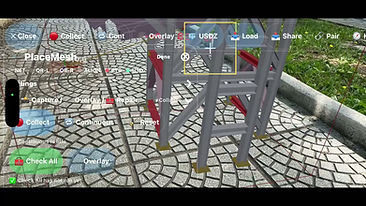
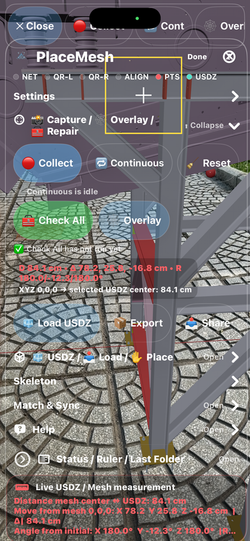
PlaceMesh is the iOS capture and placement app. It collects AR points, builds a mesh overlay, loads and positions USDZ models, measures the distance from the captured mesh center to the selected USDZ center, and exports or shares the resulting scene files.
PlaceMesh Viewer is the Apple Vision Pro companion. It displays the same type of scene content in a window or immersive space, receives marker-relative content from iOS, and can send its own loaded USDZ or captured content back to iOS AR.
The paired workflow uses the PairingQRMarker as a physical shared reference. When both devices recognize the same marker, PlaceMesh can send mesh, point, generated USDZ, loaded USDZ, and transform data in marker-relative coordinates so iOS AR and visionOS immersive content can visually coincide around the same physical reference.
The apps are positioned as visualization, review, training, education, design communication, and local spatial documentation tools. They are not medical diagnostic tools, surveying instruments, construction-certification systems, or safety-critical measurement products.
PlaceMesh is a local AR capture and spatial review tool for iPhone and iPad.
Use the camera and AR tracking to collect surface points, create a mesh overlay, load and place USDZ models, measure the distance between the captured mesh center and a loaded USDZ, and export mesh/point/USDZ files for review. PlaceMesh can also connect to PlaceMesh Viewer on Apple Vision Pro for marker-relative shared coordinates.
Key features:
Collect AR points inside a visible capture area.
Convert point captures into a smooth mesh overlay.
Load and position original USDZ models.
Measure distance from the captured mesh 0,0,0 center to the selected USDZ center.
Export share-ready ZIP packages.
Use AirDrop, ShareLink, Save to Files, or paired-device transfer.
Show a PairingQRMarker to iPhone/iPad and Apple Vision Pro to align both devices around the same physical reference.
Press Match & Sync to send mesh, point, generated USDZ, loaded USDZ, and placement transform data in marker-relative coordinates.
PlaceMesh is designed for local review workflows. It does not require an account or cloud project. The user controls capture, import, export, sharing, and paired transfer.
Suitable uses include field visualization, construction review, design communication, training, education, product placement, spatial documentation, and local AR-to-immersive comparison.
PlaceMesh is a visualization and review tool. It does not certify construction tolerances, structural safety, medical diagnosis, treatment, legal compliance, or measurement-critical decisions.

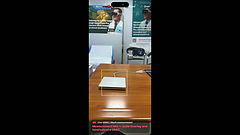
PlaceMesh Viewer is the Apple Vision Pro companion for PlaceMesh.
It receives marker-relative mesh, point, USDZ, and placement data from PlaceMesh on iPhone or iPad and displays the content in a window or immersive space. When both devices recognize the same PairingQRMarker, the viewer can align its immersive content with the same physical reference used by the iOS AR app.
Key features:
View PlaceMesh scene captures in Apple Vision Pro.
Open immersive space for aligned review.
Show the green PairingQRMarker surface and XYZ axes at the recognized marker center.
Receive mesh, point cloud, generated USDZ, loaded USDZ, and placement transforms from iOS.
Send loaded USDZ and captured Vision content back to iOS AR.
Use Align + Send All to AR to share immersive content while preserving the local Vision copy.
Use a yellow-box Vision Capture workflow to capture bounded scene mesh content.
Export, share, and review local scene packages.
PlaceMesh Viewer is designed for local review, design communication, construction visualization, training, education, and immersive spatial comparison. It does not require a cloud account.
PlaceMesh Viewer is a visualization and review tool. It does not certify construction tolerances, medical decisions, safety-critical layouts, or legal compliance.
Vision Connectivity and Pairing

Print in printer dimesion should be 10cm x10 cm
PlaceMesh Apple Vision Pro Connectivity Guide
Two-app workflow
PlaceMesh now ships as two apps:
-
PlaceMesh on iPhone or iPad for capture and preparation.
-
PlaceMesh Viewer on Apple Vision Pro for connected review.
How connectivity is achieved
The live connection is achieved with MultipeerConnectivity and Bonjour on the local network or peer-to-peer radio path.
The handheld app now hosts automatically, Apple Vision Pro reconnects automatically, and scene updates are shared automatically as the capture changes. That payload can include the sync role, registered points, optional mesh, shared world transform, bundled QR marker state, and available USDZ data.
Real-time review in Apple Vision Pro
Once connected, PlaceMesh Viewer updates its control window in real time with connection state, peer lists, received role, point count, triangle count, selected USDZ item, and shared-origin status.
The immersive view updates from the same synced model and shows origin markers, mesh content, sampled point-cloud review, and the active USDZ scene.
Recommended iPhone / iPad → Apple Vision Pro flow
-
Open PlaceMesh on iPhone or iPad. The handheld app now starts as the automatic capture source and advertises nearby.
-
Open PlaceMesh Viewer on Apple Vision Pro. The headset now reconnects automatically as the nearby receiver.
-
Show or print one bundled QR marker and let both devices recognize that same printed marker.
-
The handheld app sends its local marker pose through the nearby link while Apple Vision Pro tracks that same printed marker locally.
-
When both marker observations are available, the apps rebuild the shared transform so the received points, mesh, and active placed USDZ scene stay in the same referenced place.
-
Inspect the received content in the control window or immersive space.
Hybrid 3D Connect marker
The bundled QR markers are not the transport mechanism by themselves. The actual transport still uses the Paired Viewing / Connection controls and the local sync session, while the shared-marker observations are used to rebuild the same referenced transform on both devices.
Privacy, safety, and limits
The paired workflow is local and user controlled in this build. It does not require an account or developer cloud service. A user can still intentionally share or export files through Apple system controls, and those files are then governed by the destination chosen by the user.
PlaceMesh Viewer is for visualization, placement review, field notes, education, research, and spatial communication. It is not a certified surveying, structural engineering, safety inspection, medical diagnosis, medical treatment, or code-compliance system.
Contact
Support: info@orthopractis.com
Website: https://www.orthopractis.com
Support URL: https://www.orthopractis.com/placemesh
Privacy Policy: https://www.orthopractis.com/privacy
Terms of Use: https://www.orthopractis.com/terms-of-use
Automatic PairingQRMarker shared origin
Both sides send throttled marker-pose beacons when the same bundled PairingQRMarker / QRMarker is detected. Each receiver computes local marker × inverse(remote marker) so the other device's scene can be mapped into the current local AR or immersive world. This creates a virtual shared origin without requiring a manual Auto Match step.
Visual confirmation: QR-L and QR-R indicate marker recognition, ALIGN indicates that the shared coordinate reference is active, and the mesh overlay turns green when the scene is being shown through that shared reference.
The workflow aligns visualization only. It does not provide certified surveying, construction compliance, clearance verification, structural validation, safety inspection, or medical measurement.
— PairingQRMarker marker-relative shared coordinates
PlaceMesh now uses the uploaded PairingQRMarker image as the visible marker preview asset and AR reference image. The shared-coordinate workflow now combines throttled QR beacons with marker-relative scene payloads: when the sender sees the marker, points, mesh vertices, and placed USDZ transforms are converted into PairingQRMarker space; the receiver rebuilds them as localWorldFromPairingQRMarker × markerRelativeScen
 |  |  |  |
|---|---|---|---|
 |  |  |  |
 |
How the paired QR workflow works
-
Open PlaceMesh on iPhone or iPad.
-
Open PlaceMesh Viewer on Apple Vision Pro.
-
Show the same PairingQRMarker to both devices.
-
QR-L turns green when this device sees the marker.
-
QR-R turns green when the paired device sends its marker pose.
-
ALIGN turns green when the marker poses can be used as a shared coordinate reference.
-
A flat green surface appears over the recognized marker.
-
XYZ axes appear at the center of the marker.
-
Press Match & Sync.
-
Meshes, point clouds, generated USDZs, loaded USDZs, and placement transforms are exchanged in marker-relative coordinates.
What users see
On iPhone/iPad:
Red point spheres during capture.
Mesh overlay after pressing Overlay.
Loaded USDZ files in AR.
Distance from captured mesh 0,0,0 to the selected USDZ center.
Flat green QR marker surface and XYZ axes after marker recognition.
Export/share and paired-device transfer options.
On Apple Vision Pro:
Viewer panels for received scene state and files.
Immersive aligned content after Match & Sync.
Flat green QR marker surface and XYZ axes.
Yellow-box Vision Capture workflow.
Distance HUD for selected USDZ content.
Export/share and send-to-AR controls.
Support
Email: info@orthopractis.com
When contacting support, include:
Device model.
iOS or visionOS version.
App version/build.
What action was pressed.
Whether NET, QR-L, QR-R, and ALIGN were green.
Whether the issue occurred during capture, overlay, USDZ load, Match & Sync, export, or paired transfer.
Why PlaceMesh Is Useful
PlaceMesh helps users connect real spaces, captured surfaces, and 3D USDZ models in one practical AR and immersive workflow. It is designed for people who need to see, compare, place, measure, export, and share spatial information without depending on a cloud account or a complicated external pipeline.
PlaceMesh on iPhone and iPad captures AR points, builds a mesh overlay, loads USDZ models, measures distance from the captured mesh center, and exports share-ready files. PlaceMesh Viewer on Apple Vision Pro extends the same workflow into immersive space, allowing the user to review captured meshes and loaded USDZ content at larger scale and with better spatial context.
The most important advantage is the PairingQRMarker shared-coordinate workflow. When both devices recognize the same PairingQRMarker, PlaceMesh can use that marker as a common spatial reference. The green marker surface and XYZ axes show the recognized origin. Then, with Match & Sync, meshes, points, generated USDZ files, loaded USDZ files, and placement transforms can be exchanged between iOS AR and Apple Vision Pro immersive space in marker-relative coordinates.
This makes PlaceMesh useful when a user wants the iPhone/iPad AR view and the Vision Pro immersive view to show the same spatial content in the same coordinate logic.
PlaceMesh turns iPhone, iPad, and Apple Vision Pro into a connected spatial review workflow. Capture AR points, build mesh overlays, load USDZ models, measure from the mesh origin, align devices with a PairingQRMarker, and share or export the result.
App Store Promotional Text
PlaceMesh lets you capture AR points, build mesh overlays, place USDZ models, measure from the captured mesh origin, and share scene packages. Pair with PlaceMesh Viewer on Apple Vision Pro using a QR marker to align AR and immersive content in shared coordinates.
AR mesh capture, USDZ placement, and Vision Pro spatial review.
Capture surfaces in AR. Build mesh overlays. Load and position USDZ models. Measure from the mesh center. Align iPhone/iPad and Apple Vision Pro using a PairingQRMarker. Export, share, or send scene content between devices.
PlaceMesh helps turn spatial ideas into visible, reviewable, shareable 3D context.
Website Section: What PlaceMesh Does
PlaceMesh is a local spatial workflow for iPhone, iPad, and Apple Vision Pro.
On iPhone and iPad, PlaceMesh can collect AR points, show red capture markers, create a smooth mesh overlay, import USDZ models, place them in AR, measure the distance from the captured mesh center, and export the result.
On Apple Vision Pro, PlaceMesh Viewer can open an immersive space, display the same spatial content, show aligned marker references, review loaded USDZ files, and send content back to the iOS AR view.
Together, the apps create a practical bridge between handheld AR capture and immersive spatial review.
Why It Matters
Many spatial workflows are difficult because the real world, the 3D model, and the review device do not share the same reference point. PlaceMesh addresses this by using a PairingQRMarker as a shared physical anchor.
When both devices recognize the same marker, PlaceMesh shows:
-
a flat green marker surface,
-
XYZ axes at the marker center,
-
QR-L, QR-R, and ALIGN status,
-
marker-relative mesh and USDZ placement,
-
synchronized content between iOS AR and Vision Pro immersive space.
This makes it easier to explain where a model belongs, where a captured surface is located, and how the same spatial content appears across devices.
Core Benefits
1. Capture real-world context
Use iPhone or iPad to collect AR points from a visible surface. PlaceMesh shows red collection spheres while capturing, then converts the capture into a mesh overlay.
2. Place and review USDZ models
Load USDZ files from Files, place them in AR, bring them in front of the camera, center them on the captured mesh, adjust their position, and review their relationship to the captured environment.
3. Measure from the mesh origin
PlaceMesh shows distance from the captured mesh 0,0,0 center to the selected USDZ center. It also supports live transform information for movement and rotation.
4. Align with Apple Vision Pro
Use the same PairingQRMarker on both devices. When the marker is recognized, PlaceMesh can exchange content in shared marker-relative coordinates.
5. Export and share
Export mesh, point, placement, and USDZ data as share-ready files. Use Share, AirDrop, Save to Files, ShareLink, or paired-device transfer.
6. Work locally
The workflow is designed around local processing and user-controlled sharing. No account is required in the current build.
PairingQRMarker Workflow
The PairingQRMarker helps both devices agree on a common spatial reference.
Workflow:
-
Open PlaceMesh on iPhone or iPad.
-
Open PlaceMesh Viewer on Apple Vision Pro.
-
Show the same PairingQRMarker to both devices.
-
Wait for QR-L and QR-R to confirm marker visibility.
-
Wait for ALIGN to confirm shared marker alignment.
-
A green surface appears over the recognized marker.
-
XYZ axes appear at the marker center.
-
Press Match & Sync.
-
Meshes, points, USDZ files, and placement transforms are exchanged.
-
iOS AR and Vision Pro immersive space can show the same spatial content in matching marker-relative coordinates.
Who Can Use PlaceMesh
Construction and AEC Review
PlaceMesh can help teams visualize 3D models in a physical environment, compare design intent with real-world context, communicate placement ideas, and export scene packages for review.
BIM and Design Communication
Use PlaceMesh to place USDZ models, review approximate spatial relationships, discuss design options, and share visual context between mobile AR and immersive review.
Facility Planning
Place equipment models, review positions, capture mesh context, and communicate spatial layout ideas before moving into formal CAD, BIM, or engineering validation.
Product Design and Prototyping
Review the scale and position of a prototype model in a real space. Use Apple Vision Pro to inspect the same content immersively.
Education and Training
Place educational 3D models in AR or immersive space. Explain spatial relationships, object orientation, and real-world context using interactive models.
Museums and Exhibitions
Preview digital objects in physical spaces, test layout ideas, and create local review scenes for exhibition planning.
Medical and Anatomy Education
Place educational anatomical USDZ models for discussion, teaching, and spatial understanding. PlaceMesh is not a medical device and is not intended for diagnosis, treatment, surgical navigation, or clinical decisions.
When contacting support, please include:
-
app name,
-
device model,
-
iOS or visionOS version,
-
build version,
-
what action was pressed,
-
whether NET, QR-L, QR-R, and ALIGN were green,
-
whether the issue happened during capture, overlay, USDZ loading, Match & Sync, export, ShareLink, or paired transfer.
For pairing problems, check:
-
both devices are awake,
-
both apps are open,
-
both devices are nearby,
-
both devices are on the same Wi-Fi/local network,
-
Bluetooth is enabled,
-
VPN or hotspot restrictions are off,
-
the same PairingQRMarker is visible to both devices.
Privacy Summary Text
PlaceMesh and PlaceMesh Viewer process AR capture, world sensing, QR marker recognition, point cloud data, mesh data, USDZ placement, measurement, and export data primarily on the user’s device.
The apps do not require a user account in the current build. The developer does not collect camera frames, scans, meshes, USDZ files, QR marker poses, placement transforms, or exported scene packages through a developer-operated backend in the current build.
Data leaves the device only when the user chooses to export, share, AirDrop, Save to Files, use ShareLink, or send content to a paired nearby device.
Support email messages are processed only to answer the user’s support request.
Terms Summary Text
PlaceMesh and PlaceMesh Viewer are visualization and review tools. They are intended for spatial capture, USDZ placement, mesh preview, local review, export, and paired-device sharing.
Users must only scan spaces, people, objects, or files when they have appropriate permission.
PlaceMesh does not provide:
-
medical diagnosis,
-
medical treatment,
-
surgical navigation,
-
emergency guidance,
-
structural certification,
-
construction approval,
-
survey-grade measurement,
-
legal compliance certification,
-
safety-critical validation.
Users should independently verify measurements, placement, exported data, and any safety-critical decisions with appropriate professional tools and qualified experts.


Privacy and support contact: info@orthopractis.com
Privacy URL: https://www.orthopractis.com/privacy
Support URL: https://www.orthopractis.com/placemesh
Terms URL: https://www.orthopractis.com/terms-of-use